

Would you like to add rich snippets to your website? Uncertain what are rich snippets, and why it should be used by you on your website?
Rich snippets are those well structured and beautiful results that you will get in Google when searching for a particular term or company. Any type of posts/pages can be displayed with a rich snippet (i.e. recipes, events, products, reviews, photographer websites, etc).
They can look like this:

Or sometimes they look like this:

This additional information in search results make your listing more noticeable in search, this means more organic traffic for your website. In addition, it can help you build authority in your niche, as your website becomes more visible in the search.
To be able to get rich snippets in Google SERP’s you need to add structured data to your website posts/pages correctly.
However, maintaining rich snippets by hand can be difficult even for the most experienced website owners. Fortunately, there are several WordPress plugins that will make it a breeze so that you can add rich snippets to your WordPress posts/pages.
So in this article, I will explain how to set them up using two helpful WordPress plugins.
Affiliate Disclosure: This article contains affiliate links, which means Affapress earns a small commission whenever you end up purchasing products we recommend. However, the opinions written are only based on our experience and not how much they pay. Please continue to support our work and learn more about our affiliate links policy.
1. Free vs Premium Plugins (Pros & Cons)
All In One Schema.org – free plugin that is utilized to markup pages/posts with rich snippets. They have good reviews and will get the job done for a lot of people. But other people (like me) are picky about how exactly the markup impacts the look of the page. Since every rich snippet plugin adds content to your page which is necessary for Google to show your rich snippets, the primary difference between rich snippet plugins is the way the information is shown on the page.
Here’s how it looks on your post:

Pros
- Absolutely free
- Easy to use
- Supports most rich snippet types: review, event, people, product, recipe, software application, video, articles
Cons
- Settings are very limited
- Design is bland and boring
- Doesn’t support local business markup
- Lacks a huge amount of features that include the premium WP Rich Snippets plugin
WP Rich Snippets – premium plugin and it’s really what I take benefit of on this website. The markup looks amazing (screenshot below) which can include an image, slideshow, video, criteria, pros & cons, call to action, plus other features listed on the add-ons page. Extensive settings with color options, user-submitted reviews, plus well documentation, and support if you need help. Definitely, the better plugin for those seriously interested in SEO and really should work perfectly with no technical skills needed.
Here’s how it looks on your post:

Another example which ultimately shows the amount of customization you can have by using this plugin:

Pros
- Robust features
- Markup looks great on your post
- Supports most rich snippet types: review, people, product, recipe, software application, video, articles, restaurants, organizations
- Customizer add-on good for branding
- Supports user reviews, call to action buttons, flexibility to add markup anywhere in a post, ranking tables, etc
- Support from the plugin developer
Cons
- Costs money ($69 – $399)
- Doesn’t support “event” rich snippets
- Each add-on have to be manually uploaded in your plugins menu and each one has a unique license key
back to menu ↑
2. All In One Schema.org
Below, I’ll give you a quick tutorial about how you can use All In One Schema.org plugin to add schema markup to your WordPress site.
Configuring The Plugin
Because All In One Schema.org Rich Snippets is listed at WordPress.org, you can install it from your WordPress dashboard directly. Then, check out the new “Rich Snippets” tab to configure it.
In the “Configuration” tab, you can configure the many labels that display in your snippets boxes (this will make more sense in a second). You don’t need to change anything here if you don’t want to:

In the “Customization” tab, you can also change the colors of your box:
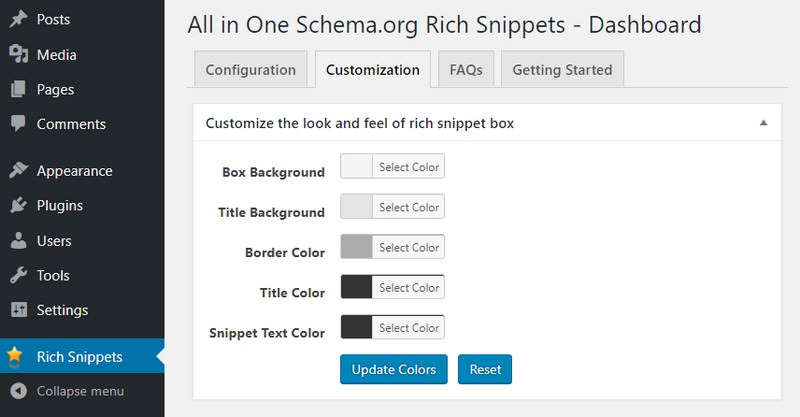
And you’re ready to add some schema markup now!
Adding a Schema Markup
You’ll add your schema markup straight from the WordPress Editor. You’ll have a new “Configure Rich Snippet” meta box. If you wish to add schema markup to your content, you merely need to choose the relevant ‘schema type’ from the drop-down:
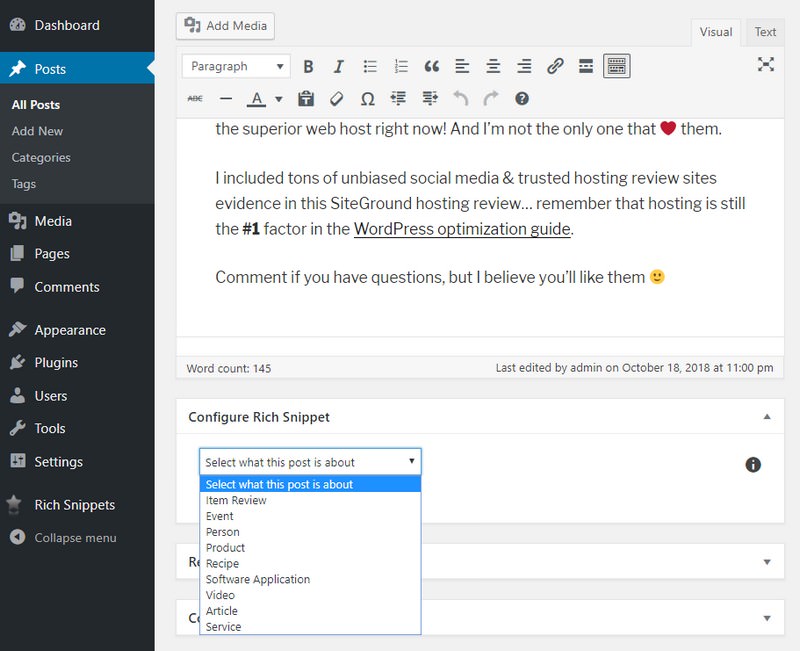
For instance, selecting “Item Review” will provide you with every one of the boxes that apply to a product/service review:
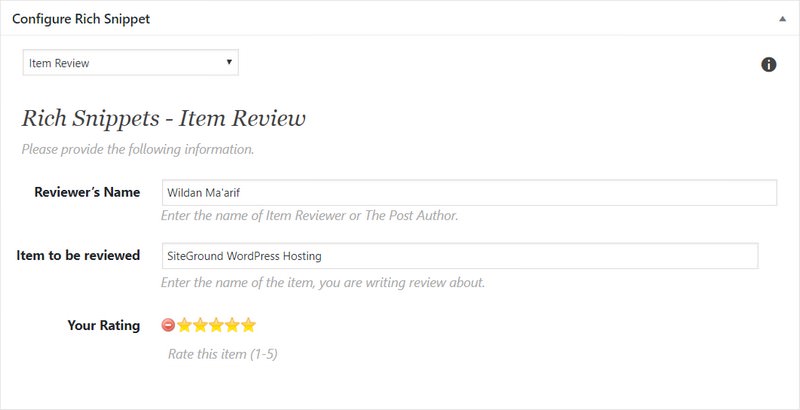
You don’t have to complete every box. But be sure you give Google enough information for the rich snippet.
Then, when you publish your post, you’ll see a little rich snippet box at the end with all your schema content and markup:
back to menu ↑
3. WP Rich Snippets
Below, I’ll give you a quick tutorial about how you can use WP Rich Snippets plugin to add schema markup to your WordPress site.
Download The Plugin
First, you have to go to the official website of WP Rich Snippets. And then choose a plan that suits your need.
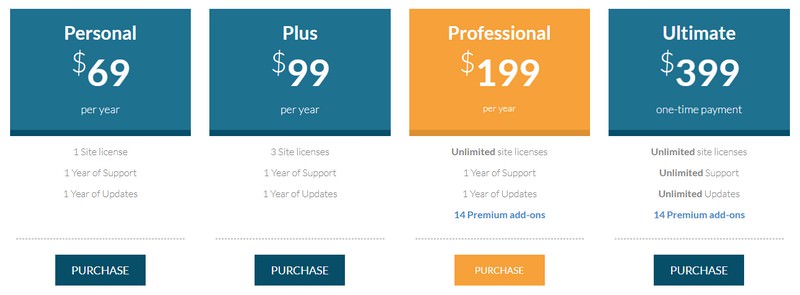
Once you finished the payment process, you’ll be sent a download link.
Configuring The Plugin
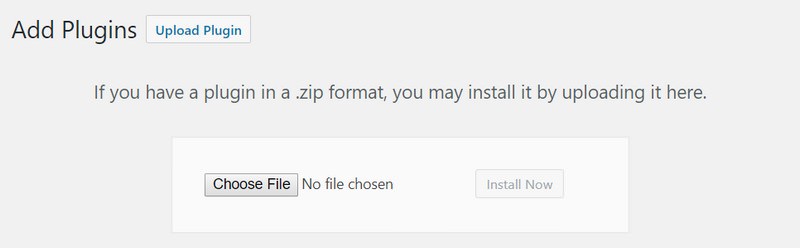
Head to your WordPress site and upload the plugin file (.zip) under “Plugins > Add New > Upload Plugin”.
Log in to your account page and click “View Licenses > Manage Sites”. Add your website to the ‘WP Rich Snippets’ option (bottom item in the screenshot) plus any add-ons which include your plan.

In the “Key” column, click on the icon for ‘WP Rich Snippets’ and you’ll see a key. Copy it!

Head to your WordPress dashboard and in the “Rich Snippets” settings, you will notice a “License” tab. Paste your key here. And now you will get automatic updates and access to their support.
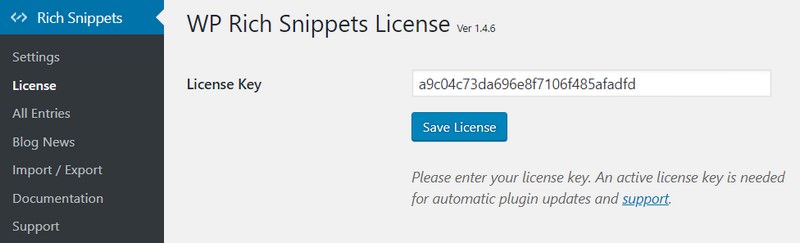
Add-ons will have the same process – download the plugin file in your account page, upload it to your WordPress site, add your website for verification, then enter the unique license key for the add-on.
Go to your “WP Rich Snippets Settings” (see recommended settings from the developer). Nonetheless, you can usually leave these as-is. However, they do have the option to enable rich snippets on pages, enable reading user reviews, etc. I’d proceed through them and move on to know your options.

Adding a Schema Markup
We’re heading to add rich snippets to your WordPress posts/pages now. Open up a post or page then scroll down to the “Schema” box. Choose the ‘schema type’ then complete all fields in the “Main” tab. Now go through the other tabs and complete all required fields proclaimed with an asterisk (*). Complete any other fields to make your content markup look better (display, link, criteria, etc).

Details tab enables you to add pros and cons if you’re reviewing something:

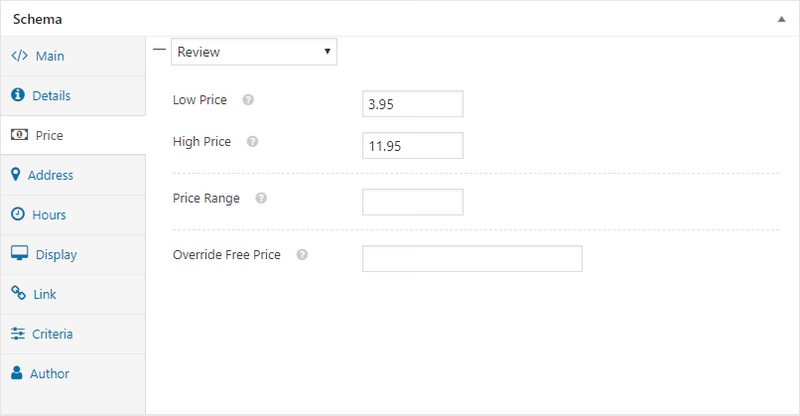
Price tab enables you to add the price of the product/service you’re reviewing:
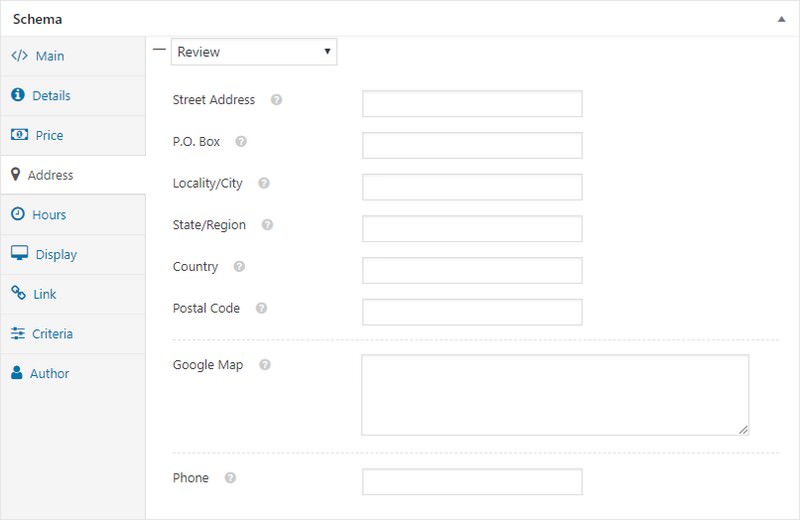
Address tab enables you to add a Google Map:
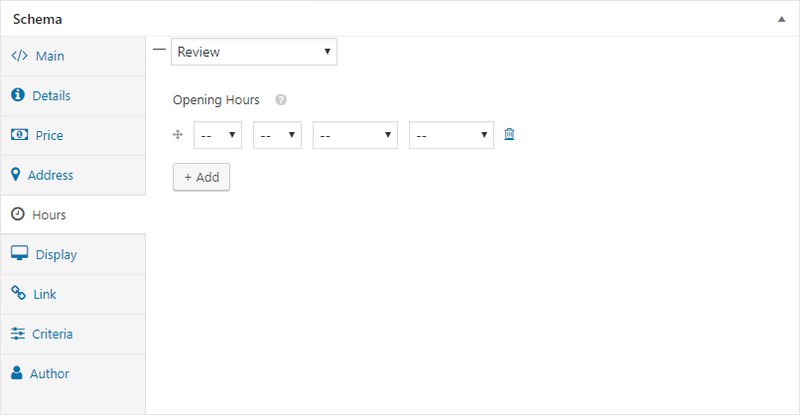
Hours tab are simply your business hours:
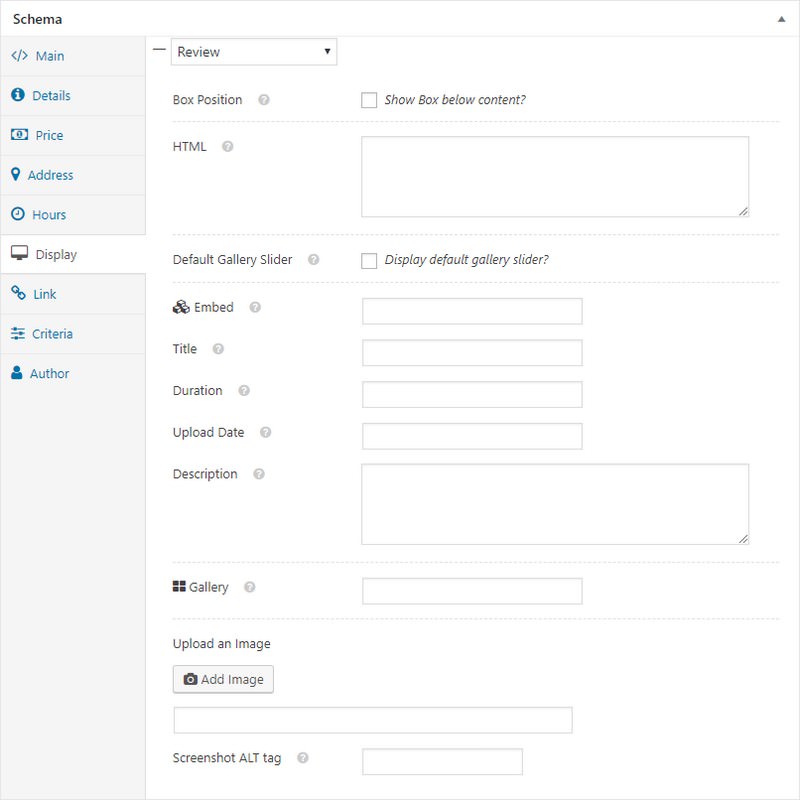
Display tab enables you to add images, videos, sliders, slideshow, image alt tag:
Link tab enables you to add links (eg. affiliate links), button text, and 2 links if using the CTA add-on:

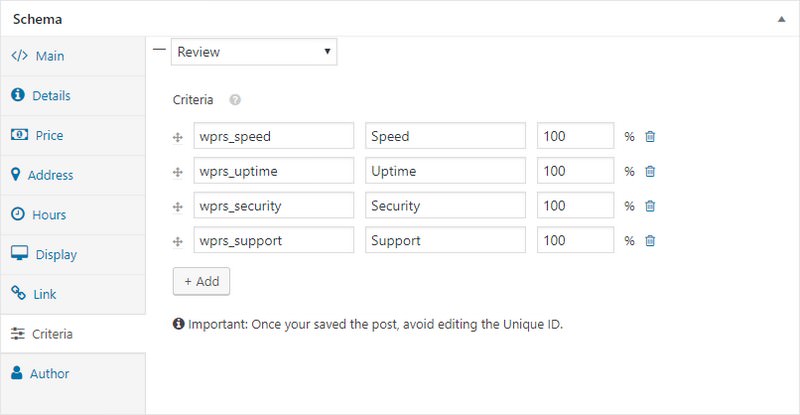
Criteria enables you to add a list of features that will be displayed as orange bars:
Author tab is required for some rich snippets (like reviews):

Preview the page to observe how it looks. Remember, you can revamp the button color and other design options in the “Rich Snippet Settings > Display” tab. Here’s how it can look:
Once Google recrawls your website, your rich snippets should look like this:

back to menu ↑
4. WP Rich Snippets Add-Ons
Do you need more? Now let’s check out a few of the WP Rich Snippet add-ons. I’m not heading to undergo most of them especially because the table add-ons are similar, just the ones I believe are most helpful.
WooCommerce – WooCommerce reviews integration, plus advanced user ratings and reviews features put into your eCommerce website.
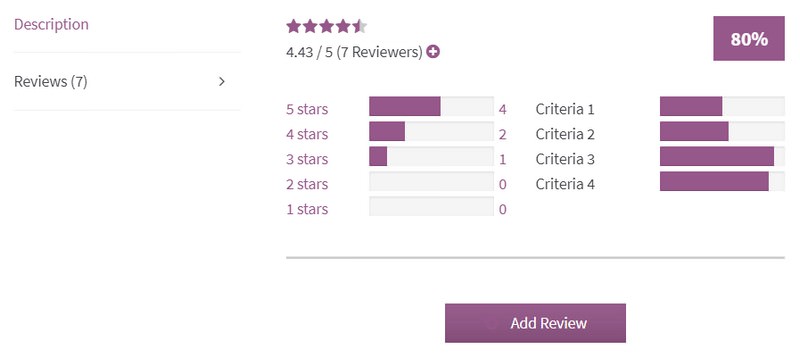
Call-To-Action – Display a call to action after every review page on your WordPress site. If you don’t want a particular item to be shown, you can disable this in the settings.

Compare – Display a product comparison table, when reviewing it be compared by a product to other products.

Shortcodes – Display any box template element with a simple shortcode anywhere.

Box Shortcode – Gives you to easily display the Rich Snippets Box any place in your posts or pages content.
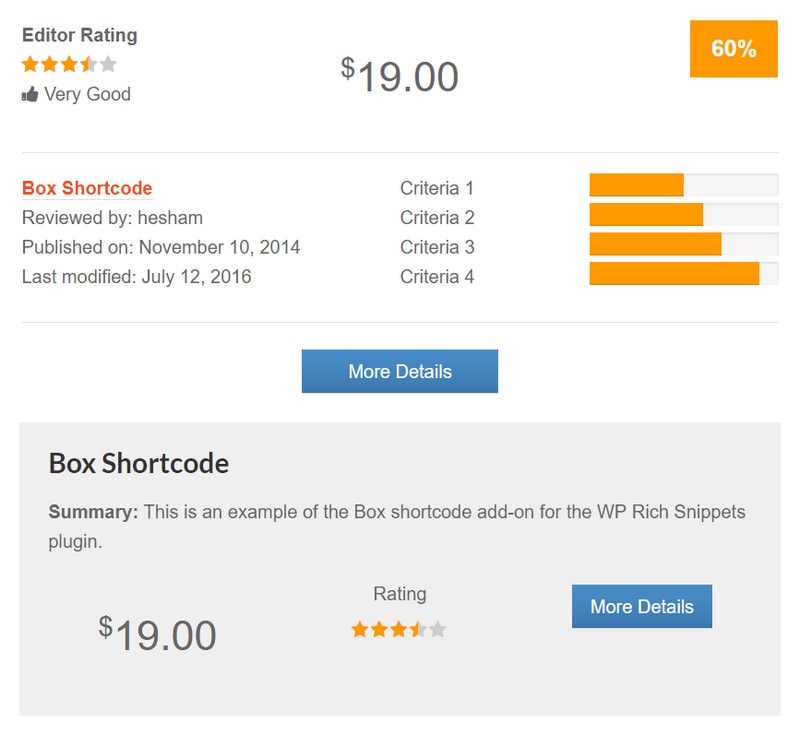
Software Specs – Display software specifications with a widget plus a shortcode to show code changelog.

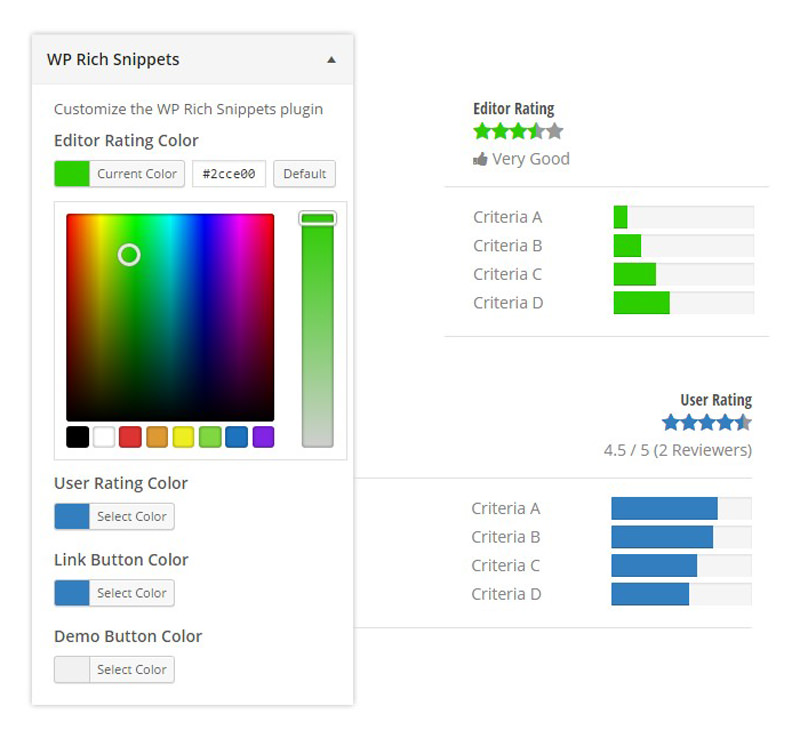
Customizer – Gives you the convenience to change colors of ratings and link buttons via WordPress Theme Customizer.
Front-End Entry Submit – Allow users to leave their own review. This is preferred over a straightforward editor review (that can lead to higher rankings since they’re more valuable).

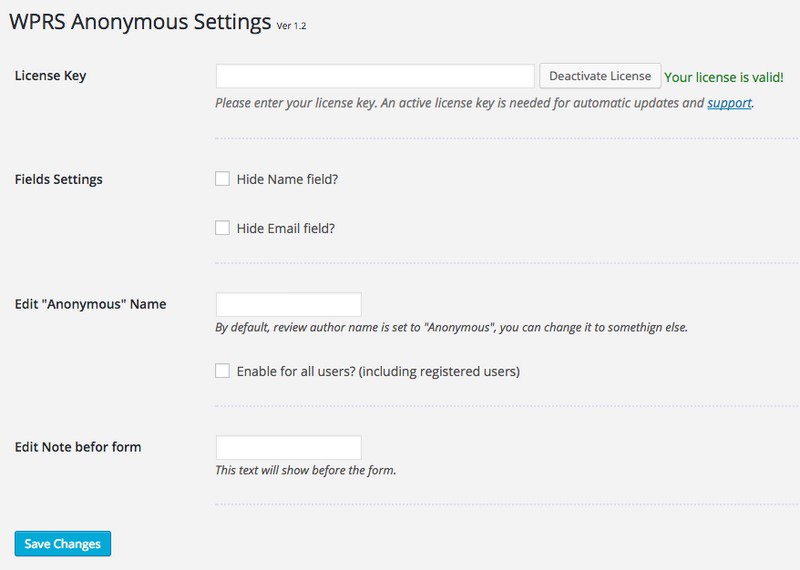
Anonymous User Reviews – Allow anonymous user aggregate reviews on your website by making Email and Name optional.
User Reviews Image – Allow users to upload an image and attach it to their reviews.
You can visit the WP Rich Snippets website to get more demos and instructions, but it ought to be self-explanatory. Just choose your rich snippet type, complete the fields, and preview the page until you prefer what you see. When you’re done, publish the post and test it in the next step.
back to menu ↑
5. Structured Data Testing
To be sure your rich snippets will work properly you should run any post’s URL through Google’s Structured Data Testing Tool. Just look for the green “All good” text and if you see errors, broaden the box to see items which have to be fixed. Your rich snippets won’t show up immediately in Google’s SERP’s (normally it takes a couple of days to update) but this tool will let you know if something’s wrong.

Common Solutions (listed by OnlineMediaMasters)
- For Genesis Framework, install the Schema Removal plugin.
- Add the data Google tells you to in their Structured Data Testing Tool.
- Make sure the data is representative of the content on the page.
- Make sure your WP Rich Snippets key is validated (step 1).
- Try adding markup to a few more pages which is suggested by Google.
- Upgrade to WordPress version 3.9+, MySQL 5+ and PHP 5.3+ (contact your host).
- Visit this Google forum which lists common problems and other FAQs.
- Visit the structured data section of your Google Search Console.
- Visit Google’s structured data policies and webmaster guidelines.
- If you still have problems, it might be because you have a low domain authority.
I am hoping you found this helpful! Adding rich snippets to WordPress is really beneficial and can provide you an enormous benefit with your SEO. So if you’re stuck, please don’t give up and either feel free to drop me a line in the comments, I attempted to provide the best solution in so far as I could.

- Readers Rating
- Rated 4.9 stars
4.9 / 5 ( Reviewers) - Spectacular
- Your Rating
Subscribe To Our Newsletter!
